3D Models To 2D Templates For Laser Cutters, CNC Milling, or Desktop Printer with Fusion 360
Creating 2D templates that can be used with your CNC router, Laser Cutter or Desktop printer in Fusion 360 is not as difficult as it may seem once you know where to look for the right tools. There are several tools and methods you can use to achieve your desired goal. This article will not cover the CAM (Computer-Aided Manufacturing) methods available in Fusion 360, It will only guide you through the process of preparing your model and then converting your 3D model parts into files that are easily transferable to other tools.
Method 1 - Nesting with Align in the Manufacturing Space (Paid Version)
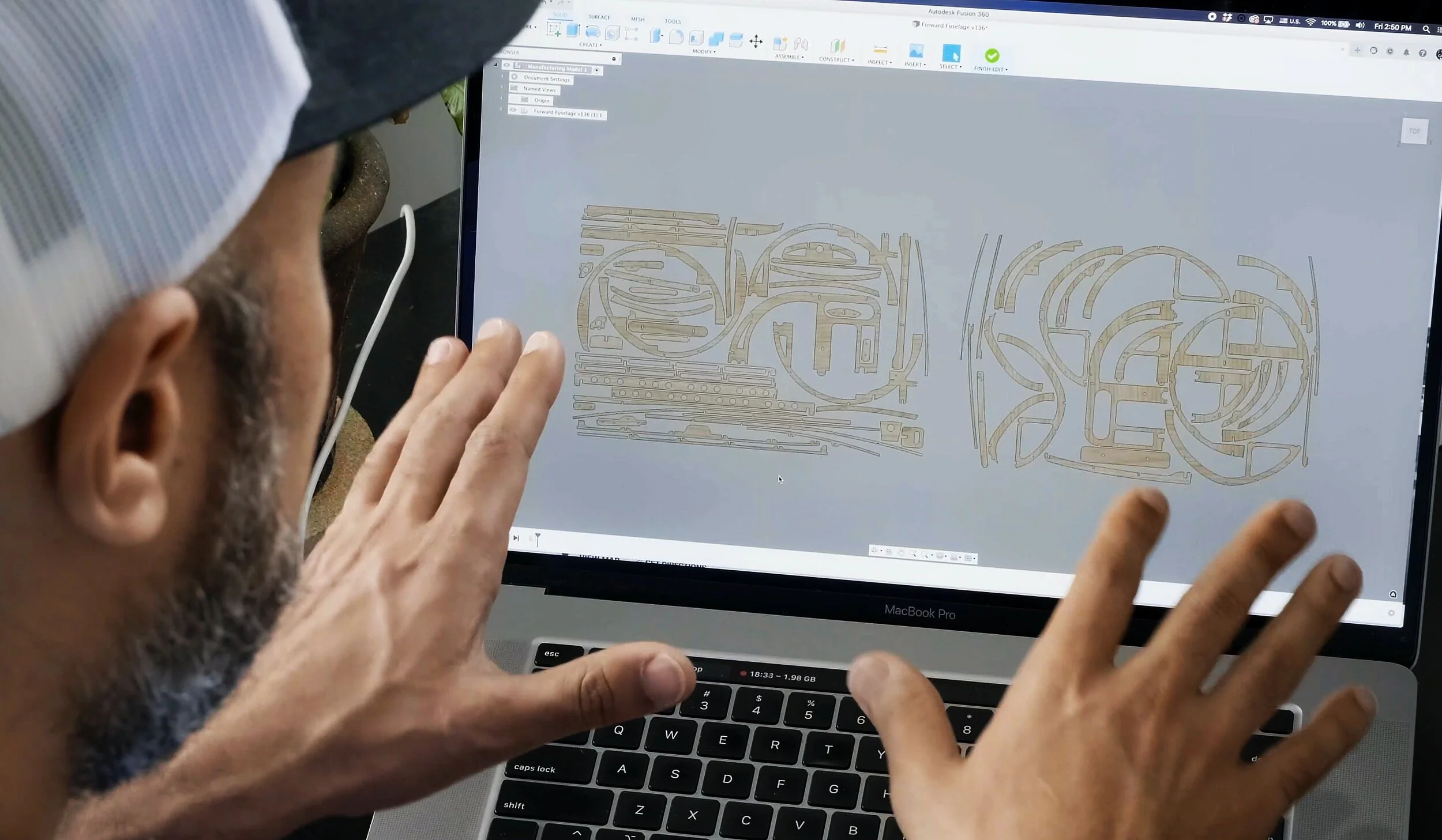
This is the fastest, non destructive method of creating your templates for 2D cutting with CNC mills or Laser cutters, and for printing templates on your desktop printer. It is very much worth upgrading your instance of Fusion 360 for 1 month to make this the least painful process. If you do, please consider using this affiliate link to also get a discount on your subscription.

Nesting in Fusion 360
To nest or arrange your parts on a flat sheet, you will need to use the arrange tool. To access this tool, right click on the manufacturing model and then select “Edit Manufacturing Model”
This is not the same as using the CAM nesting Add in, which is a separate upgrade offered by AutoDesk.
Once you have enabled the edit functionality, you will see the tools bar across the top change. Select “Modify” then select “Arrange”. This will activate the arrange tool.
The final step is to select each face of each part you want nested on your sheet then select ok.
Once you have modified the manufacturing model using the arrange tool, you will have an efficiently nested layout spread across as many sheets as needed. From this point, the last step is to project the shapes using the Sketch project tool.
Method 2 - Manual Nested Template Layouts (Free Version)
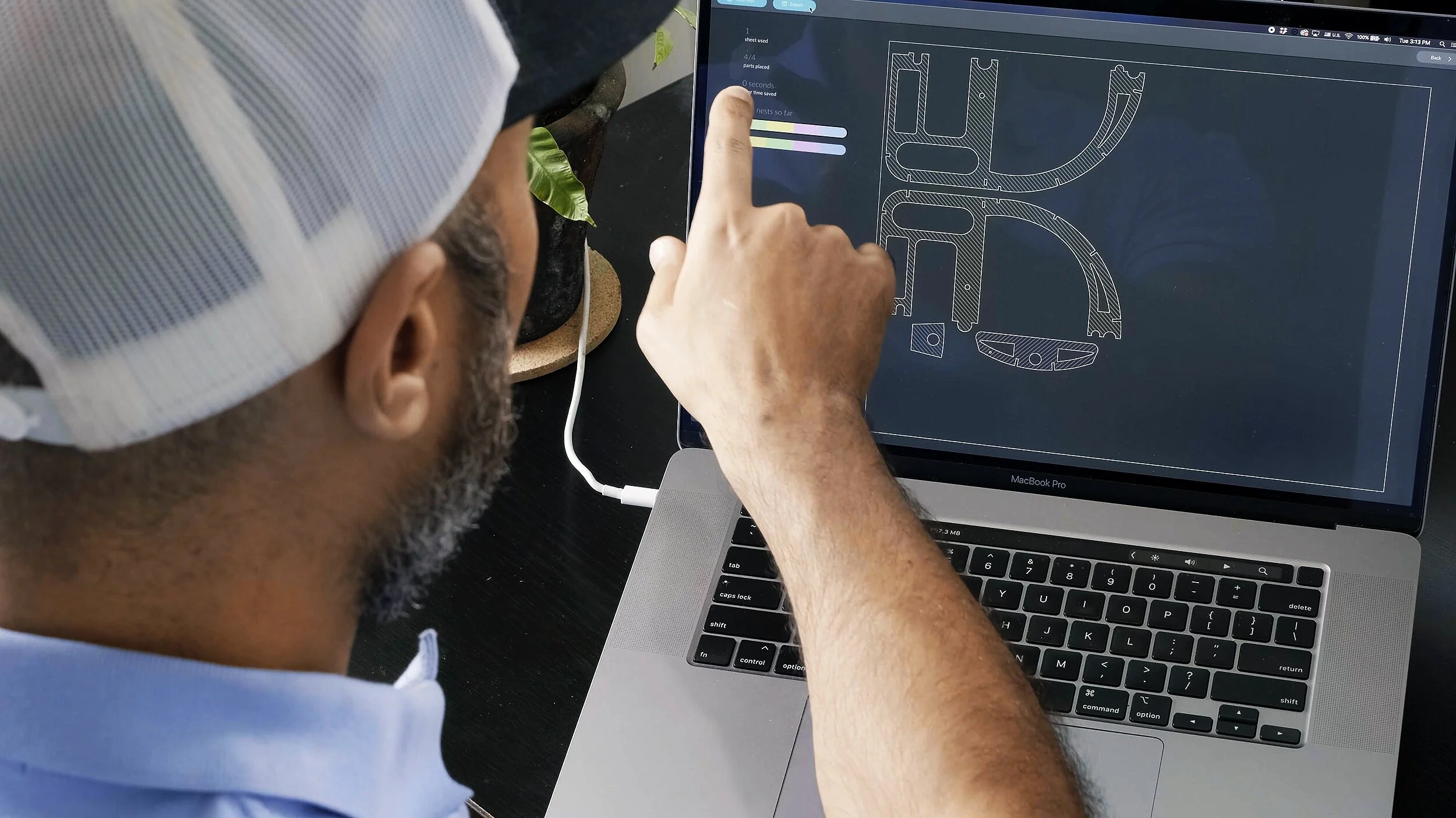
I have done surveys on YouTube to get a feel for how many of you are using the Free version and it was close to 90%. I don’t want to discourage you, however, this and method 4 will be less than ideal and you must be prepared to do a lot of time consuming manual work. Please make sure you are in Parametric Modeling mode to ensure restoring your model is quick an easy.
If you are able, I strongly recommend upgrading Fusion 360 for 1 month to save time (Discount). Otherwise, let’s get on with it.
Download and Install software.
Make sure you are installing the correct add in for Mac and Windows machines.

Nesting Using Deepnest.io
To nest your parts onto flat sheets that can be exported as DXF or SVG templates (without having to start a subscription of Fusion 360), you will need to download and install 2 pieces of software (Buttons above):
DXF for Laser
DeepNest.io
To get all of your parts out of Fusion 360 and into Deepnest.io, you will need to process each part of your model manually using the DXF for laser add in. This add in will help speed up the process of exporting each DXF file but it will take you some time to work through each part. The built in arrange and nesting tools in fusion 360 makes the work many magnitudes faster if you are in a hurry.
Tip:
After exporting a part, toggle the visibility or that part so that you do not mistakenly export the same part more than once.
Convert DXF Files into PDFs - The Desktop Printer Option
For those that do not know how to converts files to PDFs for printing on paper and do not want to use Adobe Illustrator, here are some options that may help.
Install Post Library for DXF Paid CAM
Adobe Illustrator is a great tool and able to read DFX files. Exporting your printable sheets out of adobe illustrator is native to the software and a sure way to get the printed sheets you need for your hot wire foam templates.
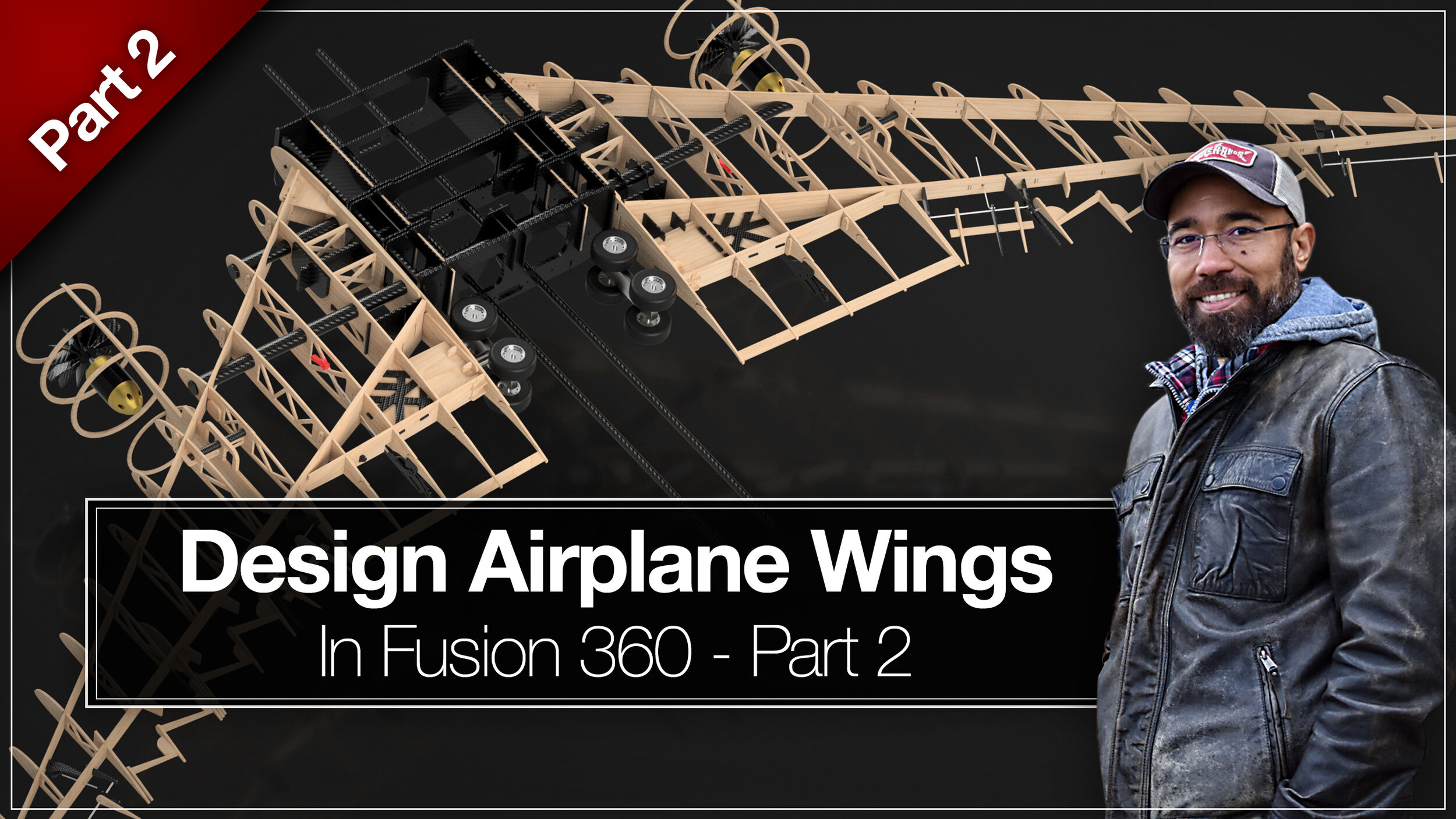
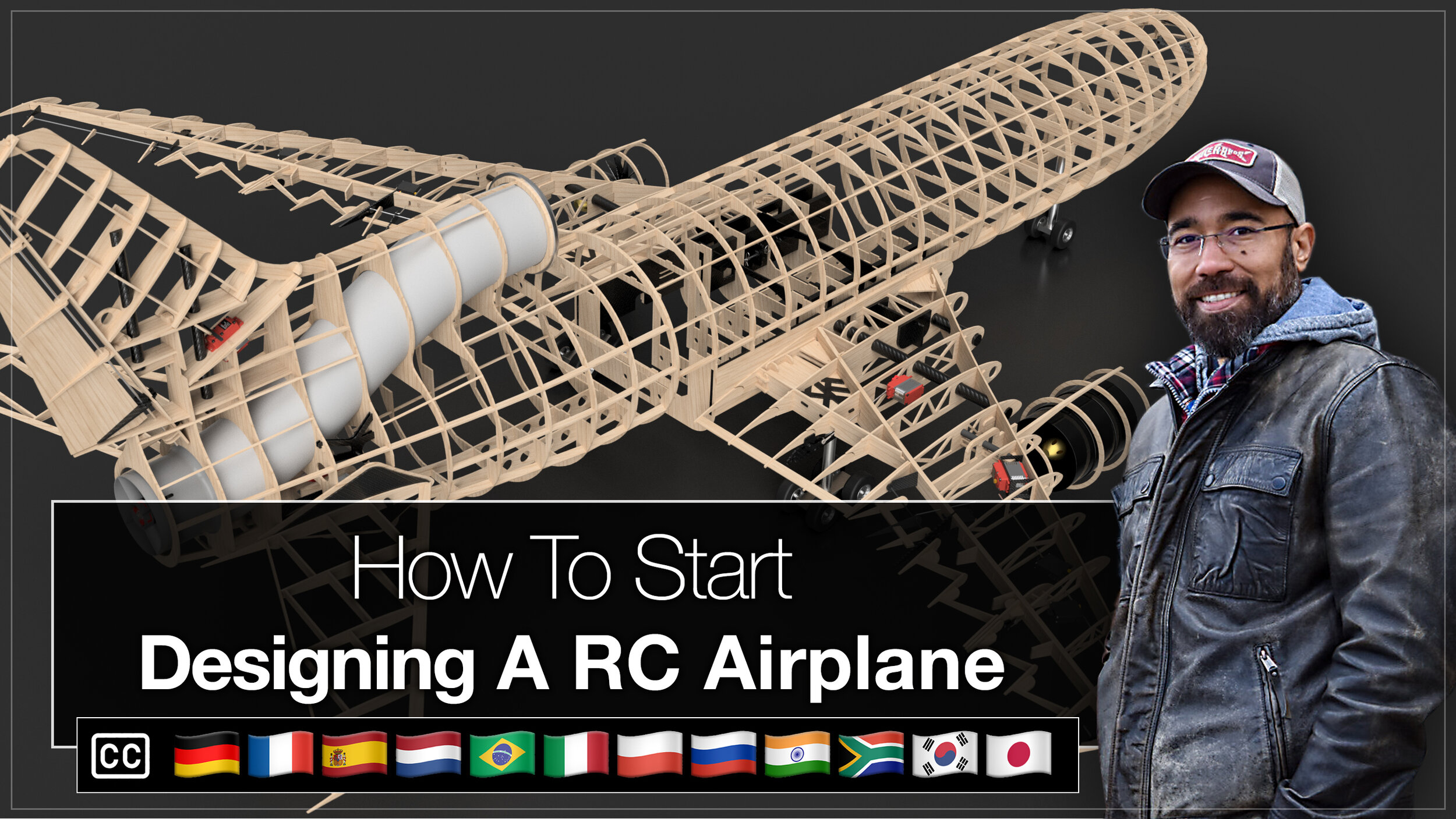
Watch the full Tutorial Series - How to Design an Airplane in Fusion 360



THANK YOU
This Page and YouTube Episode has been supported by the generous Tip Jar Contributions from the following supporters.
Geoff Dell
Claude Festin
Andy Wright
Yoram Shalev
Terry Blake
Lars Baeter
Anthony Colotti
Peter Hern
Nigel Roche
Peter Andrade
Tiran Dagan
Salman Riaz
Eric C.
Keith Freeman
Matthew Cullen
Peter Dankmeyer
Pierre Seguin
Thomas Matthew
Nicholas Leber
Kurt Kenyon
Maxime Daout

Designing a plane but don't know where to begin with wing design? In this video tutorial I’ll show you how to start designing wings for your RC airplane. Whether you’re building with balsa, 3D printing, or developing foam plans the Fusion 360 concepts are the same.